Site administrators can change the owner of a single project, or of all the projects that belong to one owner. This is useful if a user leaves an Agent or Licensee company and a new employee is assigned to those projects. Note that new owners must be registered users with approved accounts.
Project owners are managed from the Projects folder under Utilities and Configuration in the Admin folder tree.

Changing the owner of a project or projects
To change the owner of one or more projects
Under Utilities and Configuration, expand the Projects folder by clicking the plus (+) sign.
Select the Change Owner folder and complete the following steps:
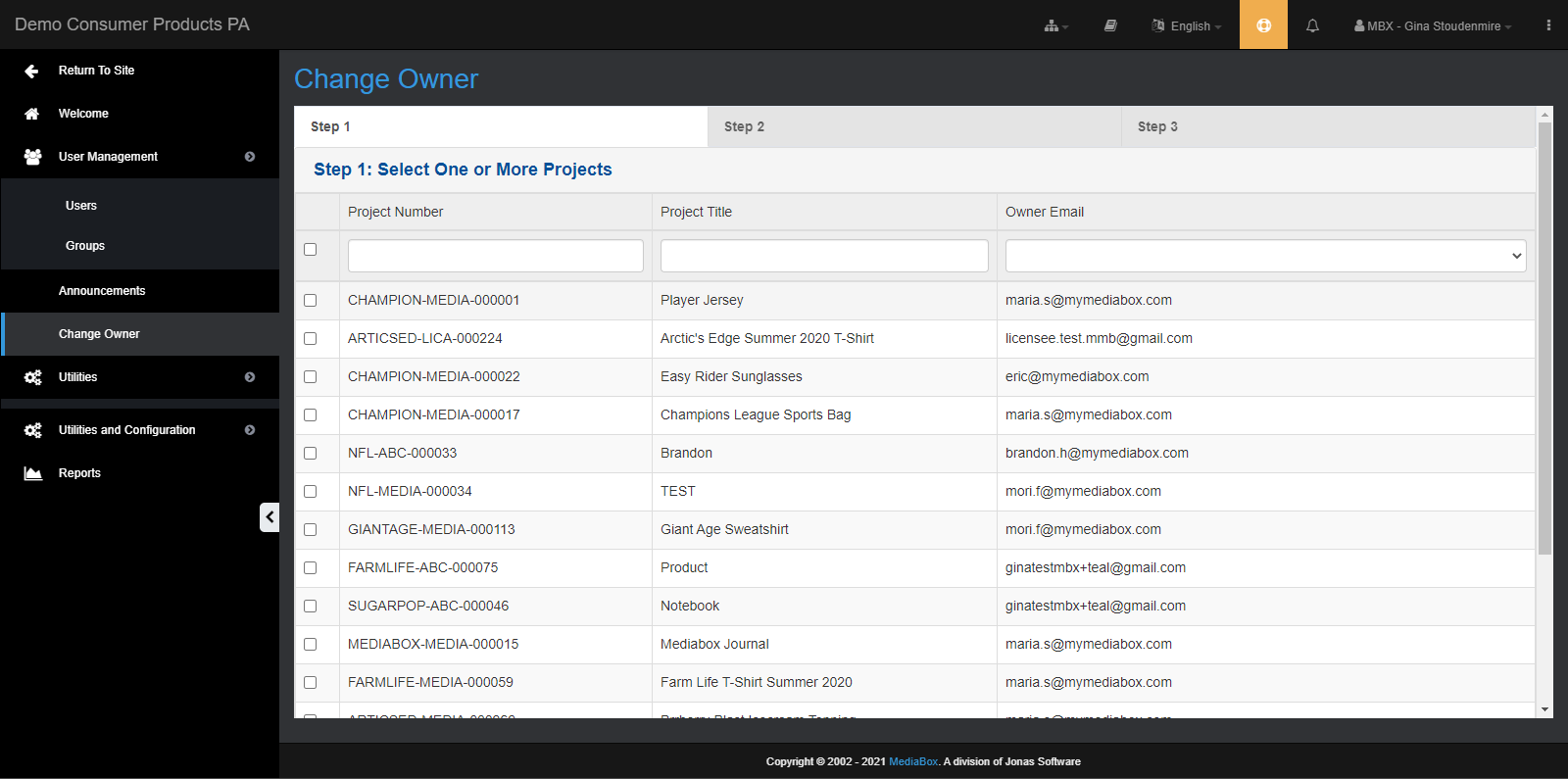
Step 1 - Select One or More Projects
In the top pane, check the box(es) to select one or more projects from the list to transfer. Use the Project Number, Project Title or owner’s email address to filter and locate projects.
Note** In order to use owner email option both accounts must be in the approved user list.
If current owner has already been suspended or is in the ''no access'' user list you can use the project number field
using company code IE: -MMB-
Company codes can be found in the Utilities and Configuration section under company list.

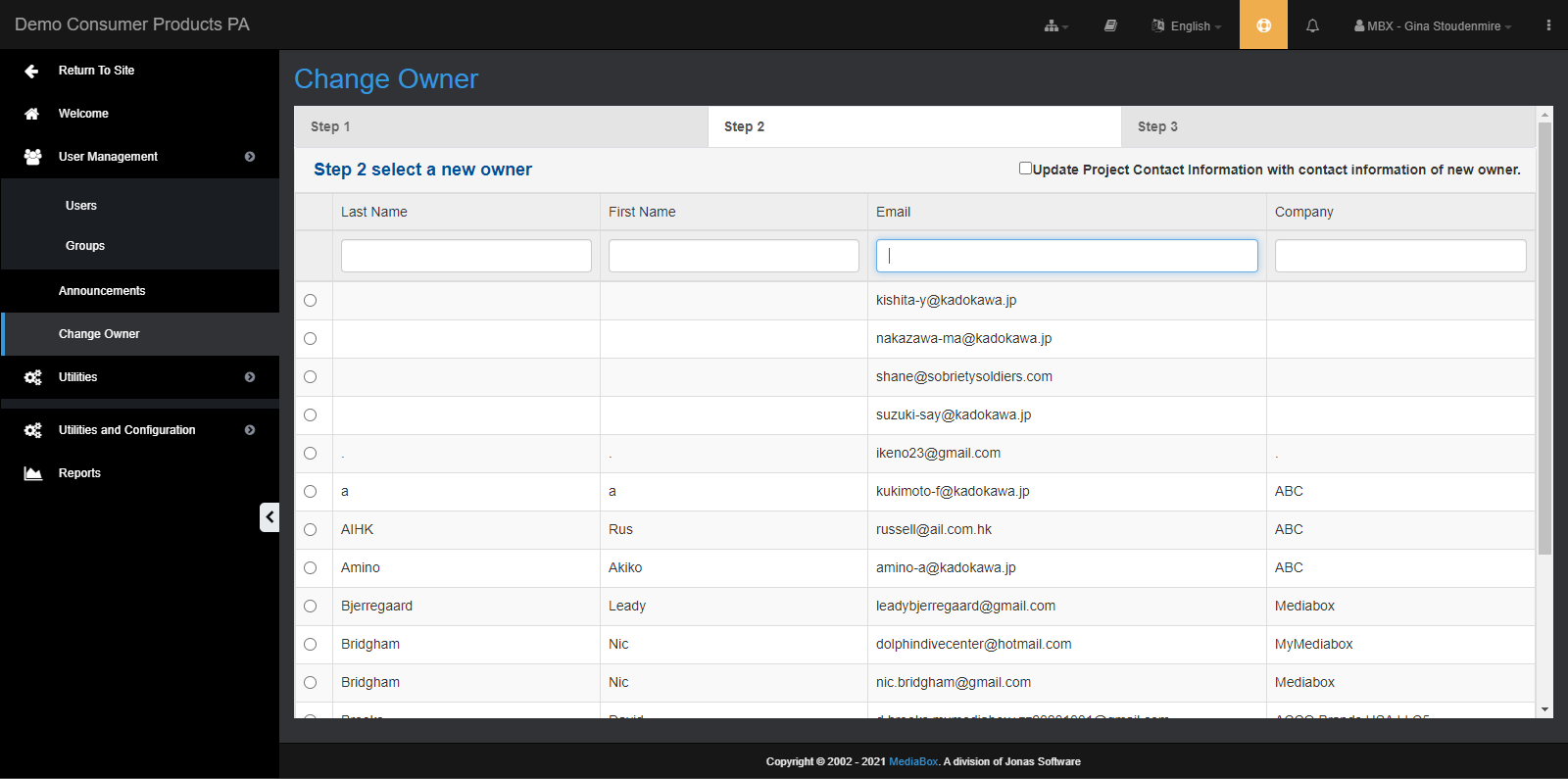
Step 2 - Select a New Owner
In the middle pane, select the new User who will take ownership of the selected project(s). Use the search fields at the top of the columns to quickly locate the new owner by last name, first name, email address or company.
Make sure to select option ''Update Project Contact information with contact information of new owner'' to see new owners information in the project list column, and project details.

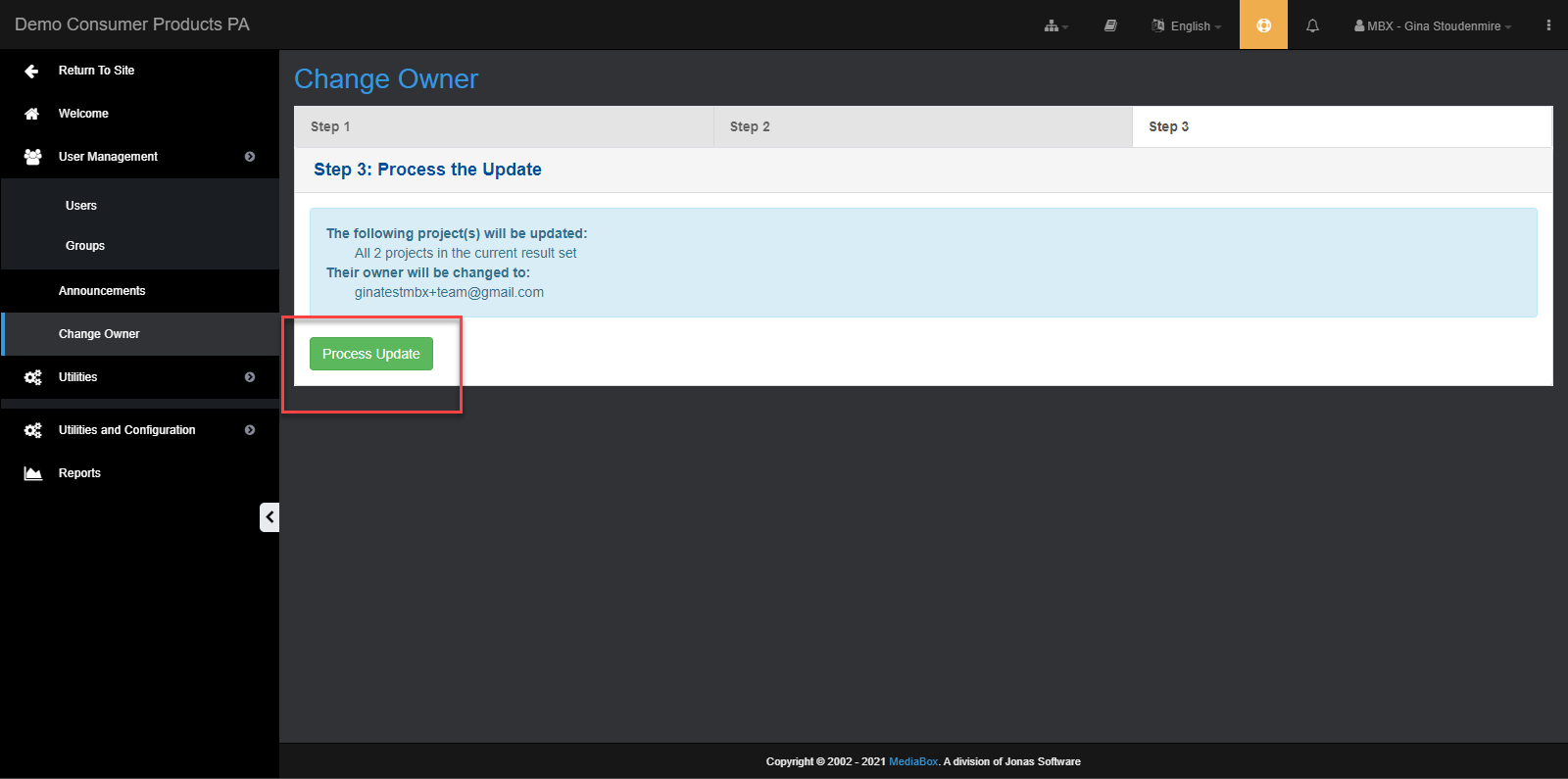
Step 3 - Process the Update
Click Process Update to transfer the project(s) to the new owner.