
Assigning a user to an Agent Company
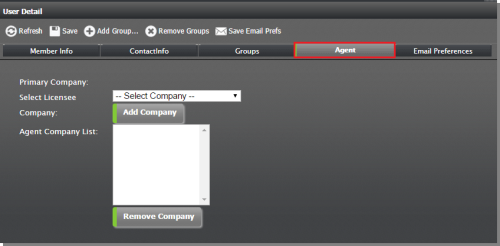
Users who are assigned as Agents can create projects and submissions on behalf of one or more Licensee companies. These companies are managed from the Agents tab in the User Details pane.
To assign an Agent Company to a user
Under Users and Groups, select the Users folder.
In the User List pane, select a user list and select a user by clicking on it to show the User Detail.
In the User Detail pane, select the Agent tab.
In the Select Licensee dropdown list, select the Licensee company.
Click Add Company to add the company to the Agent Company List. To add more than one Licensee company, repeat this step. (To remove a company from the list, highlight the company in the Agent Company List and click Remove Company.)
Click Save to save the Agent Company assignment.
TIP Sometimes new Licensees need help completing their first project. In cases like this, site administrators can assign themselves or a Lead Reviewer as an Agent for the Licensee in order to create a project on the Licensee’s behalf. The administrator can then revert project ownership back to the Licensee.