
Site Administrators and Account Managers can send new users email invitations to access the system. Invited users receive an email notification that contains a link to Mediabox-PA’s registration page, where they can register their account details. New users can be invited from the Pending, Approved, Suspended, or No Access User List views.
To invite a new user
Under Users and Groups, select the Users folder.
At the top of the User List pane, click Invite.
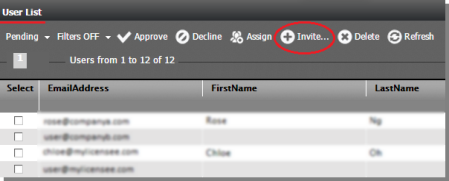
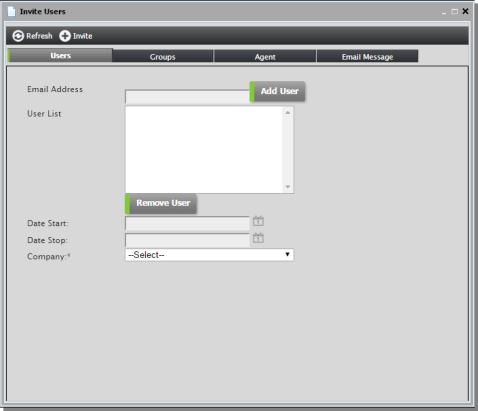
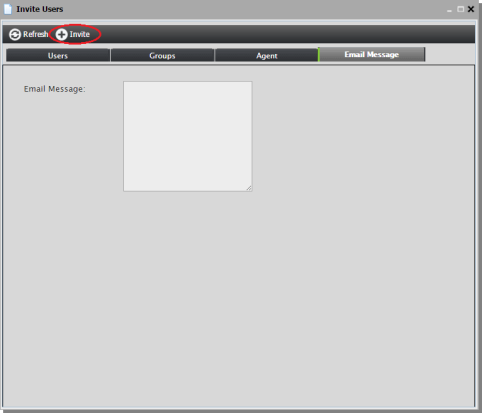
In the Invite Users dialog, do the following:
Enter the user’s email address and click Add User to add it to the User List.
To send an invitation to several users at once, repeat this step for each user.
Select a start and end date for the account.
Assign the account to a primary company by selecting a company from the Company dropdown list. Note that this is a required field.
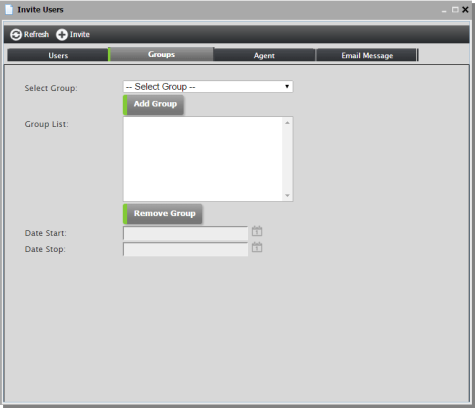
To add invited users to a group, click the Groups tab, select a group from the Select Group dropdown list and click Add Group. To select more than one group, repeat this step. If no group is assigned, the default group is Licensee.
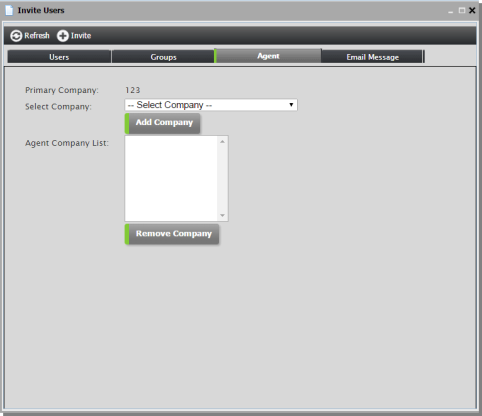
If the user is an Agent, click the Agent tab and do the following:
Assign companies to the user by selecting from the Agent Company dropdown list. The user will be allowed to create projects on behalf of these companies.
To add an optional message, click the Email Message tab and type a message into the Email Message field.
Click Invite to send the invitation.
Re-inviting a user
Sometimes users don’t respond to invitations. In this case, Site Administrators and Account Managers can resend an invitation to an invited user. Users can be re-invited from the Invited User List view only.
To re-invite a user
Under Users and Groups, select the Users folder.
At the top of the User List pane, select the Invited user list from the dropdown menu.
Select the invited user(s) and click Re-Invite and then OK.

Deleting an invite
Invited users are counted against the Licensor’s User Credits (according to the Licensor’s contract with Mediabox-PA). If invited users do not register, site administrators can revert these credits back to the company account by deleting the user invitations. This way, the Licensor is not charged for unregistered users.
To delete an invite
Under Users and Groups, select the Users folder.
At the top of the User List pane, select the Invited user list from the dropdown menu.
Select the invited user(s) and click Delete Invite and then OK.
