
Users who are not invited but instead register directly on the Mediabox-PA Login page must be approved by an administrator before they can access the system. Pending users are shown in the Pending list view of the User List.
To approve a pending user
Under Users and Groups, select the Users folder.
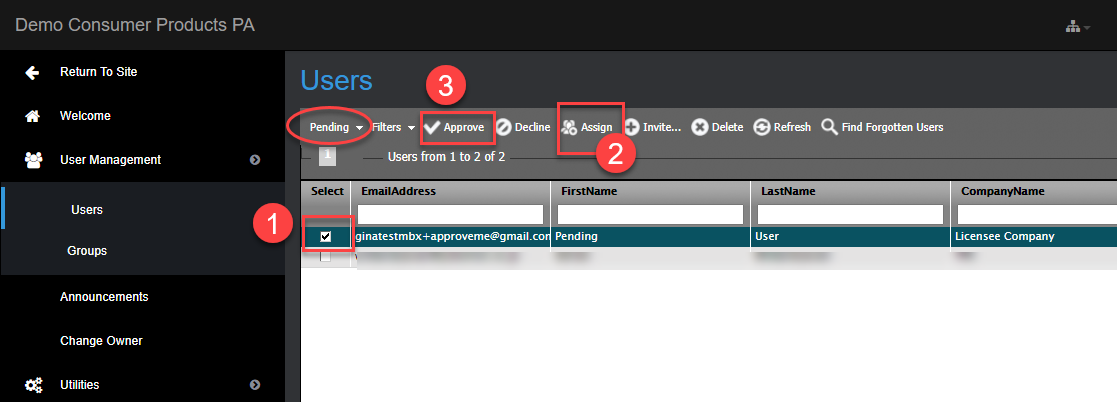
At the top of the User List pane, select the Pending user list and select users by selecting the checkbox next to the user.
Click Assign to assign the user(s) to a company.
In the Select Company dialog, select the company and click Assign Company. Note that this is a mandatory field—pending users must be assigned to a Company before they can be approved.
Click Approve to approve the user. Users receive an email notification to let them know that the account request is approved.
Declining a pending user
Pending users may be declined by Site Administrators and Account Managers. Declined users receive an email notification that their request has been declined.
To decline a pending user
Under Users and Groups, select the Users folder.
At the top of the User List pane, select the Pending user list
Select users by selecting the checkbox next to the user.
Click Decline. The user(s) will receive an email notification that the account request is declined.
Deleting a pending user
To delete a pending user
Under Users and Groups, select the Users folder.
At the top of the User List pane, select the Pending user list.
Select users by selecting the checkbox next to the user.
Click Delete to delete the user.