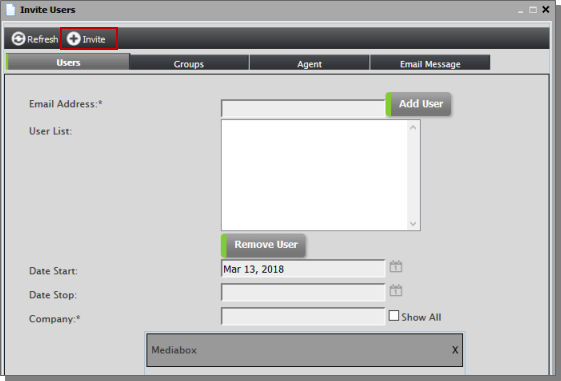
The Clone User feature allows Site Administrators to copy an existing user's account configuration - including Group membership, account end date and Company information - to a new user.
To clone a user
Under Users and Groups, select the Users folder.
At the top of the User List pane, select a user list from the dropdown menu.
Select a user by clicking on it to show the User Detail.
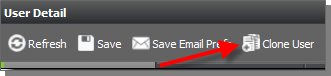
At the top of the User Detail pane, click Clone User.
The Invite Users window opens with many of the fields already filled in based on the original user's account configuration. Fill in the remaining fields as usual and click Invite at the top of the window to invite the new user.