User permissions are determined by the Group the user is assigned to. If Groups were not assigned when a user was invited, a Site Administrator or Account Manager can assign one or more Groups from the Groups tab in the User Detail pane.
If no Group is assigned, the default group is Licensee. Therefore, if the user is a Licensee, there is no need to assign a Group.
To assign a user to a Group
Under Users and Groups, select the Users folder.
At the top of the User List pane, select a User List from the dropdown menu.
In the User List pane, click on a user to select it and show the User Detail.
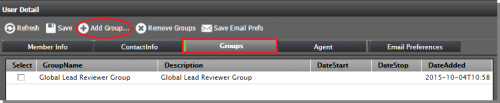
In the User Detail pane, select the Groups tab and click Add Group
5.In the Add User to Groups dialog, do the following:
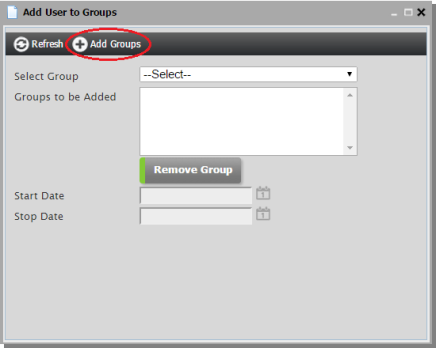
Select Groups to assign to the user from the Select Group dropdown list. These are added to the Groups to be Added field. (To remove a Group from the list, click the Group name to highlight it, and then click Remove Group.)
Select a start and end date.
Click Add Groups to assign the user(s) to the Group(s).
6. Assigned Groups are added to the Groups list in the User Detail pane.